 Read CV
Solar® SaaS Designing for clarity under pressure.
My Role
UI/UX Designer
Deliverables
2 Desktop · 2 Mobile · 1 Marketing Visual
Domain
Industrial Energy · Enterprise SaaS
Duration
48-hour challenge
01 — The Brief
Dense data. Critical decisions.
No room for confusion.
An industrial energy software company needed a UI/UX designer to reimagine their solar plant monitoring platform. The challenge: design two complex data screens — an operations dashboard and an energy forecast model — that plant operators could read and act on in seconds, not minutes.
This wasn't a consumer app. The users are on-site operators managing live solar infrastructure — 12 zones, dozens of inverter strings, and real-time production data flowing every minute. A missed anomaly costs revenue. An inverter underperforming at 74% for six hours is a maintenance issue, not a blip. The interface isn't just showing data — it's the tool through which operators make high-stakes decisions under time pressure.
No reference screens were provided. No existing design system to follow. Complete creative freedom — with the constraint that the result had to feel enterprise-grade, trustworthy, and scannable by someone who's checking it every few minutes between site walks.
How do you surface 20+ live data points — production, zone health, system alerts, environmental conditions — in a layout an operator can read in under three seconds, without any training?
02 — Understanding the Users
Three roles. Three questions. One interface.
Before opening Figma, I mapped who would be using this platform and what specific question each role needed answered the moment they opened the screen. The dashboard user in the design — Emre Kaya, Plant Operator — grounded every layout decision. Every section exists because someone real needs it.

Plant Operator
On-site, checking the dashboard constantly. Needs to catch issues fast — an inverter underperforming, a zone dropping below threshold, an anomaly on the production curve. The Alerts panel (2 Critical, 3 Warnings today) is their first stop.
Core question
“Is anything broken right now, and what do I do about it?”

Operations Manager
Tracks daily trends and compares actual vs expected production. Uses the Production Analysis chart hourly — looking at where the actual line diverges from the expected dashed line, and why. Needs to plan maintenance before issues escalate.
Core question
“Are we on target today, and where are the performance gaps?”

Executive / Decision Maker
Needs the headline numbers fast: 61.60 MWh produced, ₺75,802 revenue, 10,986 kg CO₂ saved — all vs yesterday. Doesn't drill into zone-level data. The KPI strip at the top is the entire interface for this user.
Core question
“How did we perform today, and are we trending up?”
03 — Operations Dashboard
Everything that matters. Nothing that doesn't.
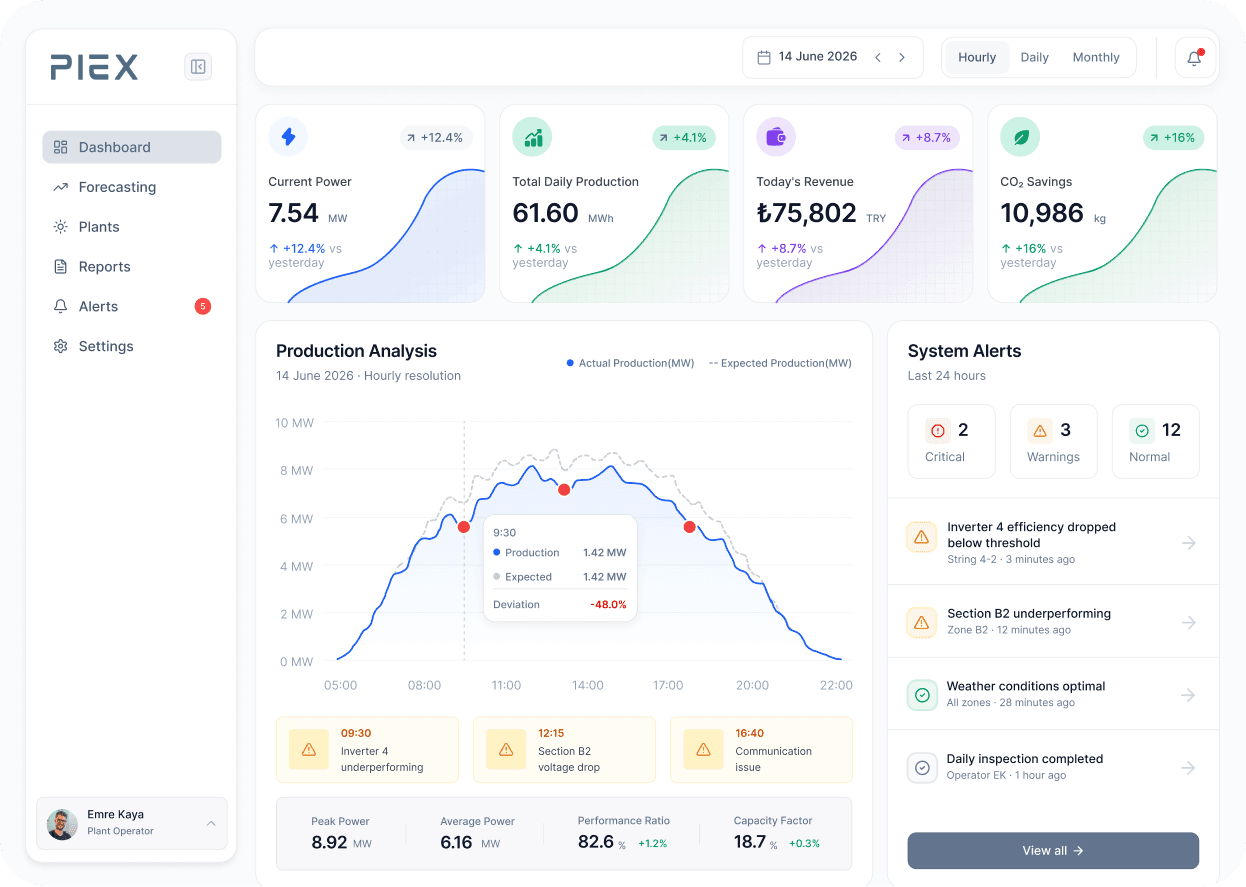
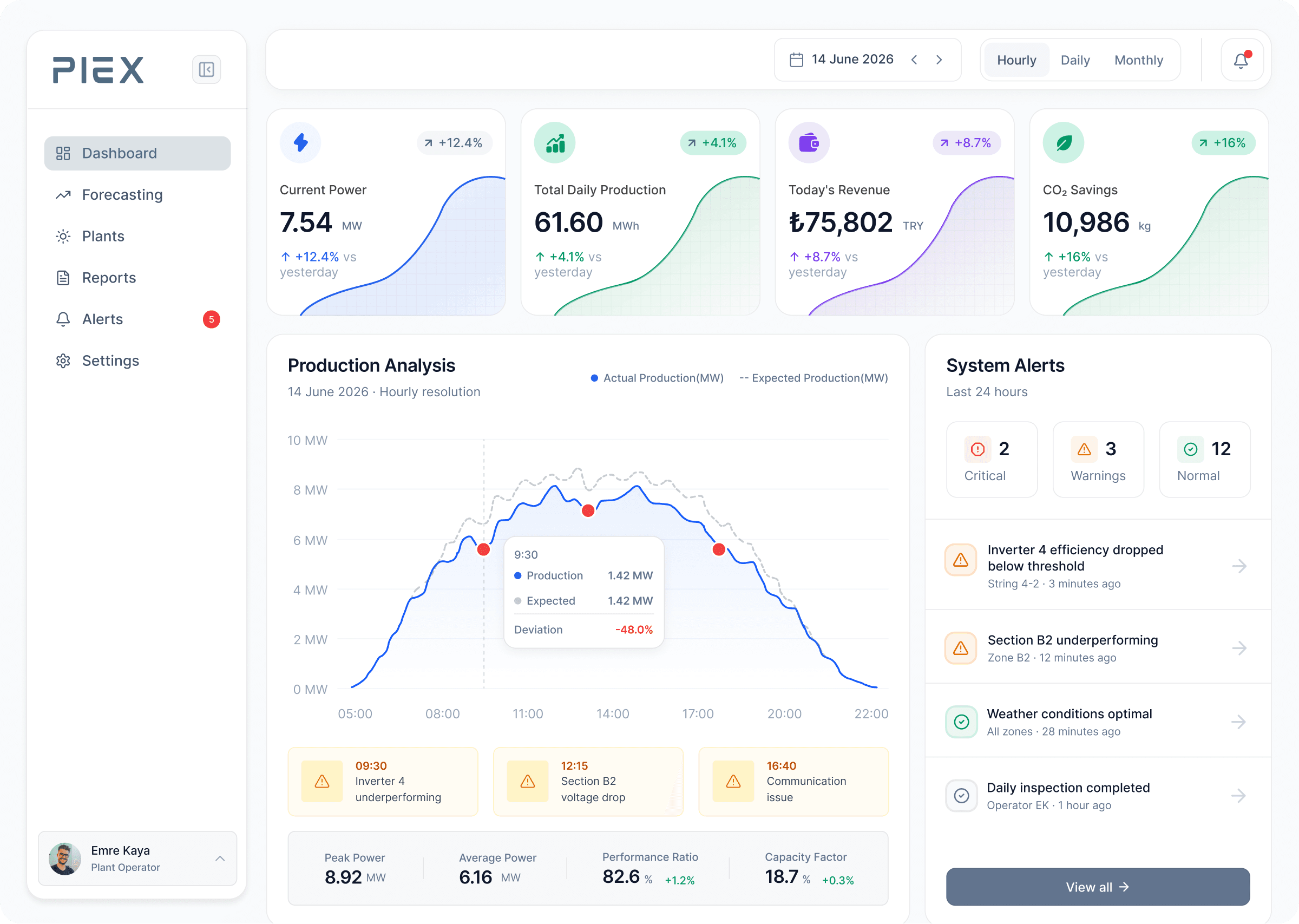
The operations dashboard needed to answer three questions simultaneously: What are we producing right now? Where are the problems? What does the system alerts panel say? These aren't three separate panels — they're three layers of the same answer, designed to be read in one scan.
The design is organised into four zones, each serving a distinct cognitive purpose. The KPI strip at the top gives you today's headline numbers at a glance. The Production Analysis chart (with actual vs expected lines) gives you the trend. The Solar Plant Monitoring section with 12 zone cards gives you spatial, per-zone health. The System Alerts panel gives you prioritised action. No hunting — each zone answers its own question.
Hi-Fi — Operations Dashboard (Desktop)
Each KPI card includes a sparkline showing the metric's trend throughout the day — not just the current number. This lets the operator see at a glance whether a metric is improving, declining, or stable without switching to the chart view
 Key Design Decision
Actual vs Expected — the chart that does the operator's job for them
The Production Analysis chart overlays two lines: the solid blue actual production curve and a dashed grey expected production curve. When the two diverge significantly — like at 9:30, where actual hit 1.42 MW against an expected of 1.42 MW but deviation read -48.0% — the gap is the anomaly. Red dots mark the three critical deviation events: Inverter 4 underperforming at 09:30, Section B2 voltage drop at 12:15, and a communication issue at 16:40. Below the chart, those events become timestamped amber chips. The operator doesn't need to spot the dip themselves — the chart calls it out before they even look for it.
Design Decision12 zones. One problem visible immediately.
The System Alerts panel doesn't just show a log — it opens with a triage summary: 2 Critical (red), 3 Warnings (amber), 12 Normal (green). The operator knows their workload before reading a single alert. Below that, alerts are sorted by urgency and recency — "Inverter 4 efficiency dropped below threshold (String 4-2 · 3 minutes ago)" is at the top because it's the most recent critical issue. Each alert row is a tap to investigate, not a dead-end notification.
Design DecisionSystem Alerts: prioritised, not just listed
The System Alerts panel doesn't just show a log — it opens with a triage summary: 2 Critical (red), 3 Warnings (amber), 12 Normal (green). The operator knows their workload before reading a single alert. Below that, alerts are sorted by urgency and recency — "Inverter 4 efficiency dropped below threshold (String 4-2 · 3 minutes ago)" is at the top because it's the most recent critical issue. Each alert row is a tap to investigate, not a dead-end notification.
04 — Energy Forecast Model
Confidence is data too. Show it.
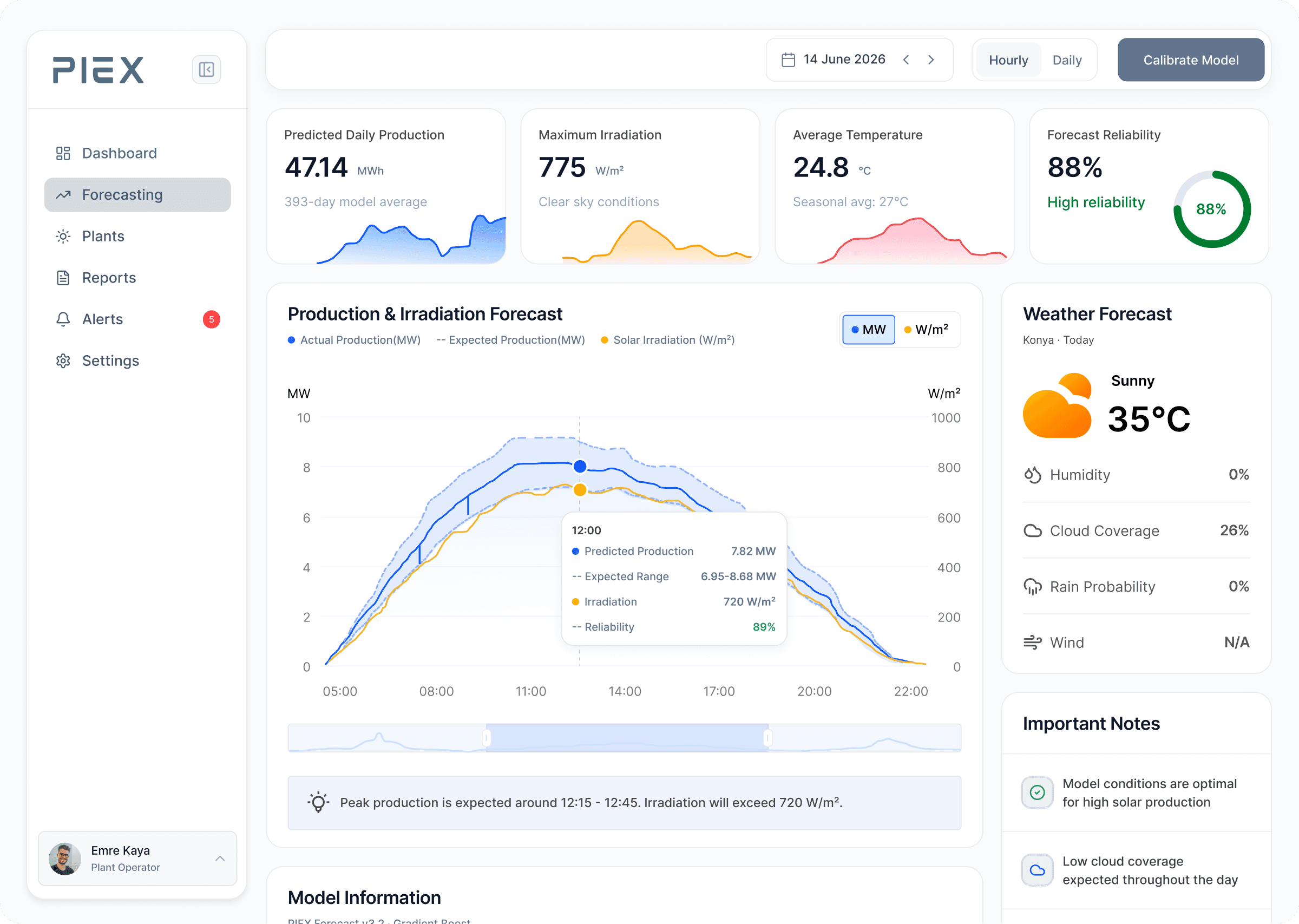
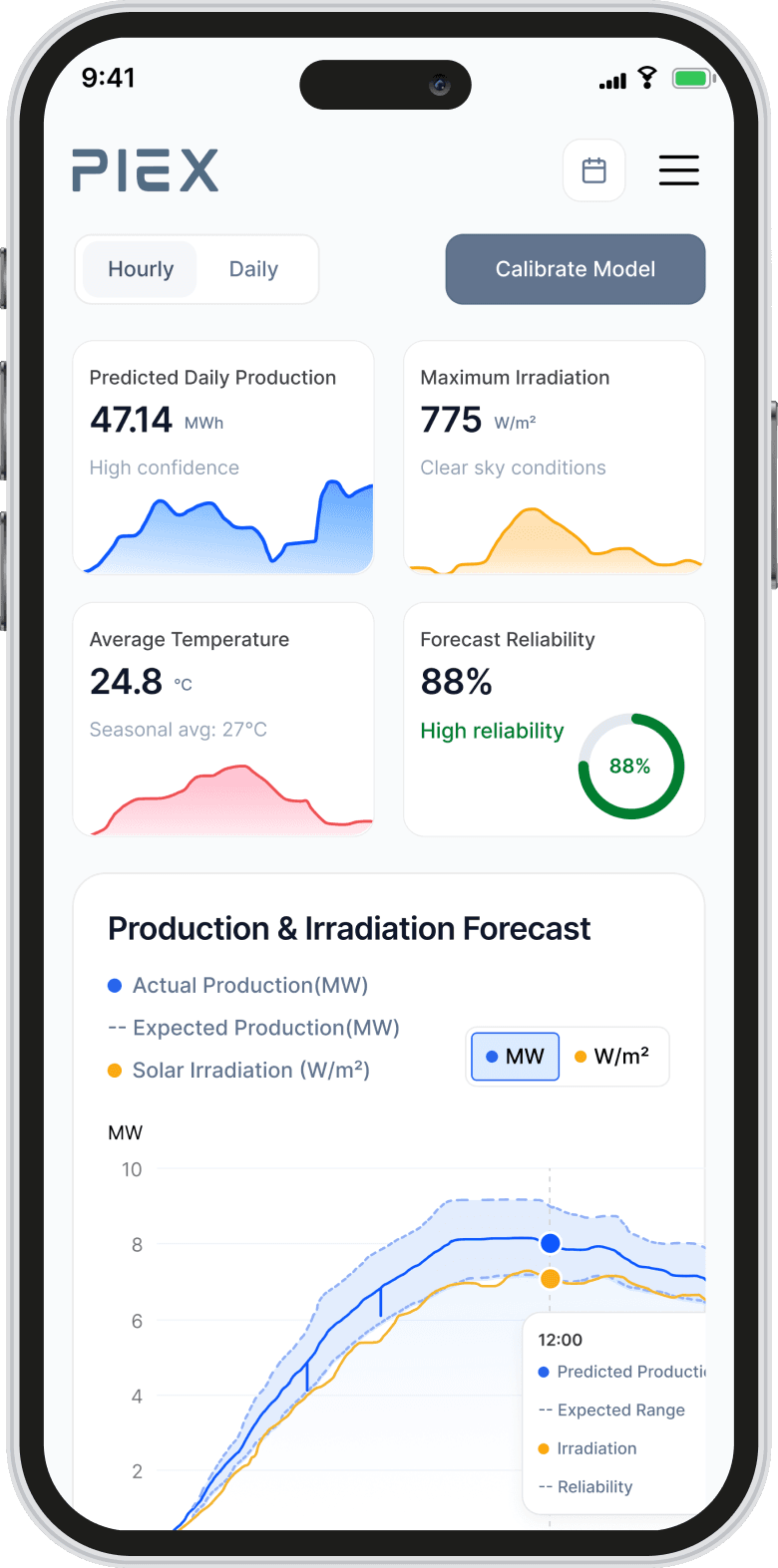
The Forecasting screen is a separate view in PIEX — accessible from the sidebar under "Forecasting," directly below the Dashboard. Where the dashboard is reactive ("what's happening right now"), Forecasting is proactive: "what will the plant produce tomorrow, and how confident is the model?" Operator Emre Kaya can switch between these two views instantly from the sidebar without losing context.
The screen answers three questions in one glance: the predicted daily output (47.14 MWh), the irradiation conditions driving that number (max 775 W/m²), and the model's confidence in its own prediction (88% forecast reliability). The fourth KPI — 24.8°C average temperature — sits alongside, because temperature directly affects panel efficiency. These aren't decorative metrics. Each one is a signal the operator acts on.
Hi-Fi — Forecast Model (Desktop)
Key Design DecisionCalibrate Model is in the top bar — not buried in the chart
The "Calibrate Model" button lives in the top navigation bar, right next to the date picker and the Hourly/Daily toggle. This is a deliberate placement: it needs to be accessible from anywhere on the Forecasting screen, not tied to a specific chart or panel. When an operator sees the MAPE rising (14.3% is on the edge) or the model's accuracy drifting from 85%, the recalibration action shouldn't require scrolling to find. It's persistent, visible, and always ready — one click regardless of where on the forecast the operator is looking.
Primary ActionWeather data alongside model data — not separated
The Weather Forecast panel (Konya · Today: 35°C Sunny, 0% humidity, 26% cloud coverage, 0% rain probability) sits directly alongside the production chart, not on a separate page. This matters: the forecast model's confidence in 47.14 MWh output depends on those weather conditions holding. If cloud coverage climbs from 26% to 70%, the 88% reliability estimate changes. By placing weather data next to the forecast, the operator can immediately see whether the model's assumptions match the real expected conditions.
Design ThinkingThe confidence band makes uncertainty visible
The Production & Irradiation Forecast chart shows three things simultaneously: the actual production curve (solid blue), the expected production curve (dashed blue), and a shaded confidence band between them. The band is the model's range of confidence — it narrows where the model is certain (around peak hours at 12:00–12:45) and widens where conditions are less predictable (early morning, late afternoon). The 88% reliability figure in the KPI card gives you the summary. The band gives you the where.
Model TransparencyShow the machine's homework
The Model Information strip at the bottom (PIEX Forecast v3.2 · Gradient Boost — Accuracy 85%, Avg Deviation 0.8 MW, Training Data 393 days, Last Calibration 09 Mar 2026, MAPE 14.3%) exists because industrial operators don't trust black boxes. An operator whose plant is rated for 8.92 MW peak needs to know the model predicting their next day's output was trained on over a year of real data and last calibrated six months ago. Hiding these numbers would feel dishonest. Showing them builds trust in the forecast — even when the accuracy isn't perfect.
05 — Mobile Responsive
Not a scaled-down desktop.
A different experience.
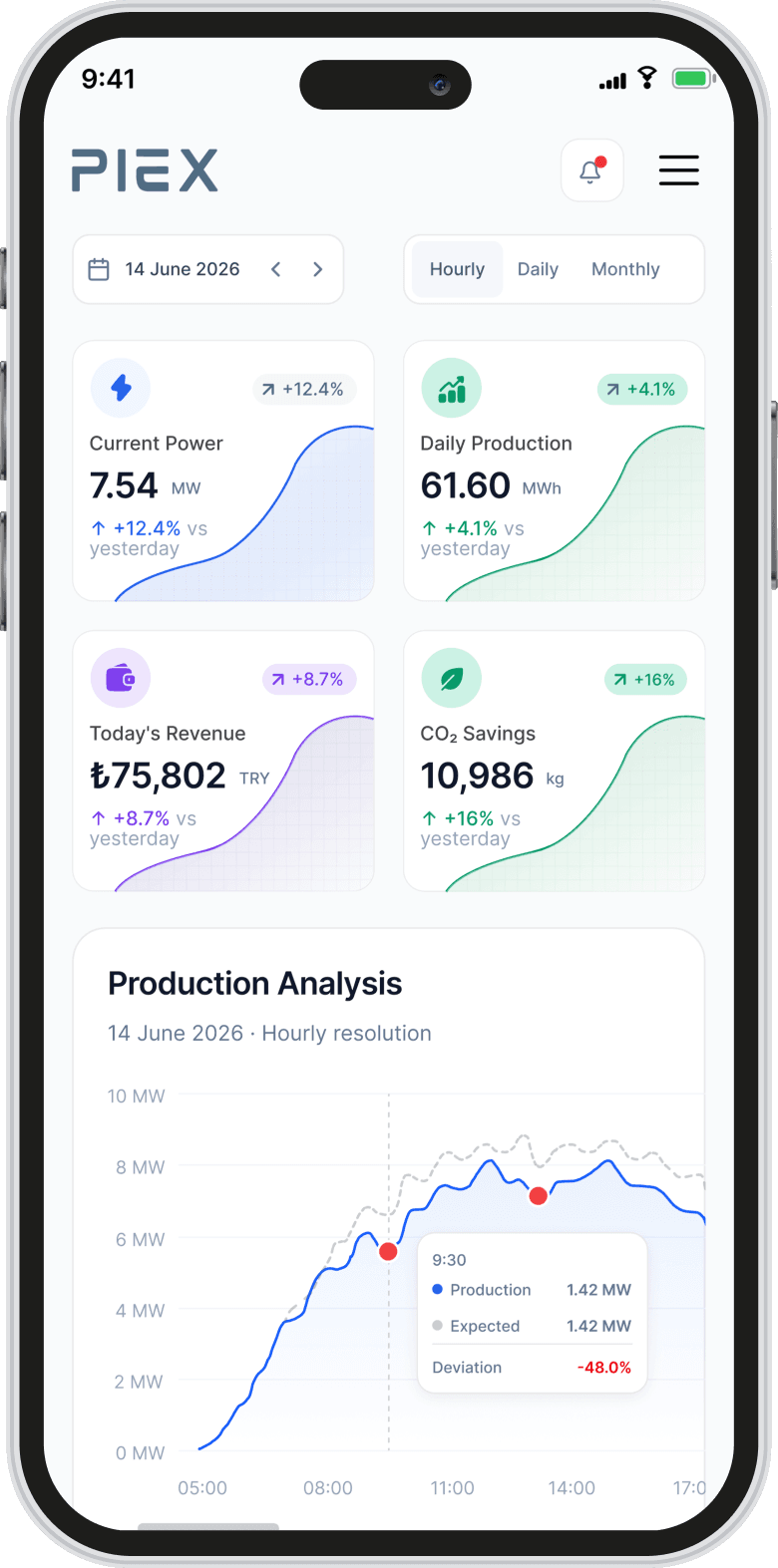
The brief asked for responsive mobile screens — not scaled-down desktop layouts, but genuinely intentional mobile experiences. An operator checking the dashboard on their phone while walking the site near Section B2 has completely different needs from one watching a monitor in the control room.
On mobile, the hierarchy tightens. The four KPIs (7.54 MW current power, 61.60 MWh daily production, ₺75,802 revenue, 10,986 kg CO₂) compress into a 2×2 grid at the top — the most critical numbers, immediately visible. The production trend appears as a compact sparkline card below, with the amber anomaly dot visible even at small size. Revenue and CO₂ follow. A persistent bottom navigation bar (Dashboard / Forecast / Alerts / Settings) keeps all core sections one tap away, never buried in a hamburger menu.
Progressive disclosure
Key metrics + action
06 — The Why Behind the What
Three principles that guided every decision.
 Data → Decision
The chart must tell, not just show
A production curve that shows a dip is data. A production curve that marks that dip with a red dot, links it to a timestamped alert chip (“Inverter 4 underperforming — 09:30”), and shows the deviation percentage in the tooltip (-48.0%) is a decision tool. Every chart element in PIEX earns its place by reducing the cognitive gap between “I see something” and “I know what to do.”
 Semantic colour system
Colour is a communication system
Green means performing normally. Amber means attention needed. Red means critical failure. This isn't aesthetic — it's a language. Zone B2 is amber at 74%. The System Alerts summary shows 2 red, 3 amber, 12 green at a glance. The production curve uses red dots for anomaly events. Colour never carries meaning alone (each is paired with a number, label, or text), but it makes the most important information visible before you consciously look for it.
 Progressive disclosure
Drill-down on demand, not by default
The dashboard shows 12 zone cards. All 12 numbers are visible. But the full Section B2 breakdown — output vs expected, performance percentage, status label, “Investigate Section” CTA — only appears when you tap the zone. This progressive disclosure keeps the overview scannable while making granular data one action away. Industrial operators know when they need detail. The interface doesn't force it on them when they don't.
07 — The Outcome
Five deliverables. 48 hours. Zero templates.
Every screen was designed from scratch in Figma — no pre-made dashboard UI kits, no lifted component libraries. The visual system (PIEX branding, blue/green/amber semantic colour logic, typography, component patterns), the information architecture, and the responsive strategy were all original work, built under a 48-hour challenge deadline. The operations dashboard alone contains 4 KPI cards with sparklines, a dual-line production analysis chart with anomaly markers and alert chips, 12 zone health cards, a system alerts panel with triage summary, and a 5-column environmental conditions strip — all on a single screen, readable at a glance.

Desktop screens — Operations Dashboard + Forecasting

Mobile screens — designed for on-site use, not scaled down

SaaS marketing visual — promotional image for the platform
Full challenge — brief to final delivery
I didn't stop at static Figma screens. I built a working interactive prototype of the operations dashboard using Claude Code and Figma MCP — pushed live to GitHub Pages. It's a functional web application: the full KPI strip, the production analysis chart with red anomaly markers, the 12-zone monitoring grid with Section B2 highlighted amber, the system alerts panel with its 2 Critical / 3 Warnings / 12 Normal triage summary, and the environmental conditions strip from Konya, Turkey — all rendering live in the browser.
"Section B2 is underperforming at 74%. Inverter 4 dropped below threshold 3 minutes ago. The operator already knows, because the interface told them before they had to look. That's the whole brief, solved."
